
Trade Polymarket like a professional — from your very first click.
Desk turns every Polymarket market into a fast, precise trading terminal: a price ladder, a live chart, real football stats and a deep set of automation tools. This guide assumes you've never traded before. We'll start with the ideas, then walk the ladder and the chart one control at a time.
Start here
Desk is an interface — it doesn't hold your money. You trade on Polymarket, through your own wallet, and Desk gives you the tools to do it well.
Before you can place a trade you'll need a funded Polymarket account connected to Desk.
- Create a Polymarket account and deposit funds (USDC).
- Open Desk and connect your account — the in-app walkthrough handles this step by step.
- Pick a market and you're ready to trade.
The full connect-your-account walkthrough — signup, deposit and linking your wallet — lives on the Getting Started page. This guide picks up once you're connected and focuses on trading.
Trading in plain English
Every market on Polymarket is a yes/no question — "Will Inter San Carlos vs CS Herediano end in a draw?" — and its price is simply the market's estimate of how likely that is.
The price is a probability
A price runs from 1¢ to 99¢. A price of 30¢ means the market thinks there's roughly a 30% chance the answer is "yes". If it happens, each share pays out $1 — so buying at 30¢ and being right returns about 3.3× your money. Desk can show that same price four different ways (cents, probability %, decimal odds, or moneyline) — pick whichever you read fastest.
Two sides of every trade
- Back / Buy / Yes — you think it will happen. You profit if it does.
- Lay / Sell / No — you think it won't. You profit if it doesn't.
Desk labels these in your chosen language — Back/Lay (sports), Buy/Sell (financial) or Yes/No — but they're the same two actions everywhere in the app.
Resting vs taking
If you trade at the current best price, your order fills immediately (you "take" the price). If you ask for a better price than the market currently offers, your order rests and waits for someone to match it. Much of Desk — the chaser, drip feed, entries and exits — is about controlling exactly how and when your orders rest, fill and close.
Your position is what you're currently holding. Your P&L is the profit or loss you'd bank if you closed it right now. "Trading out" (also called greening up or flattening) means closing to lock that number in — win, lose or draw.
The workspace
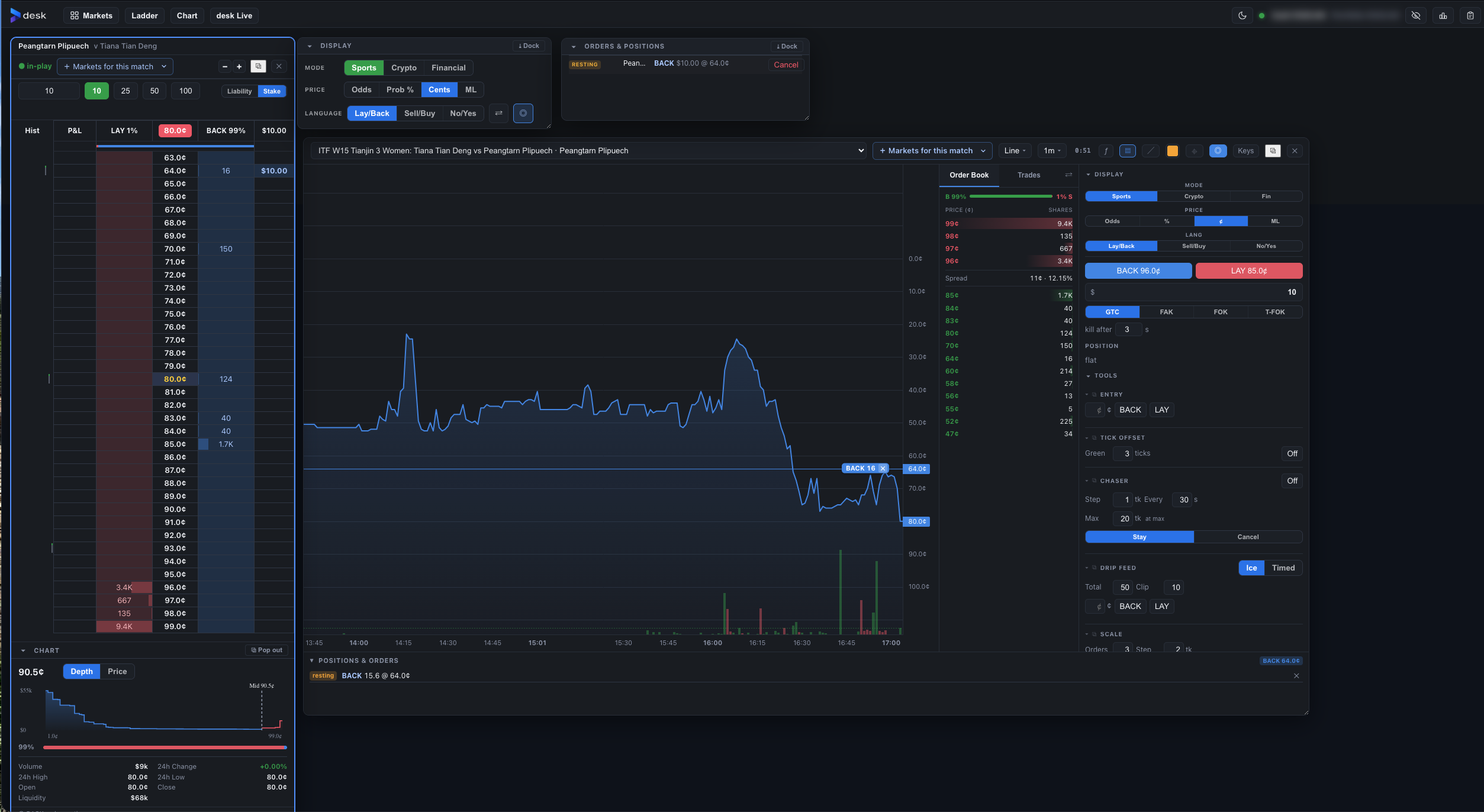
Desk is a workspace, not a single screen. The bar along the top spawns everything you need, and each panel floats freely — drag it, resize it, or pop it out.
- Markets — browse every market by category: trending, sport, in-play, politics, crypto, and more.
- Ladder — open a ladder for a market (the main trading surface).
- Chart — open a price chart with indicators and its own trade ticket.
- Stats — open a football stats panel for match data.
- desk Live — watch smart-money flow into and out of markets in real time.
On the right of the top bar sit two icon buttons: the clipboard opens Orders, Positions & History, and the profile icon opens Settings — both covered below.
Ladder and Chart open the market you're currently focused on, so you can have the same market as a ladder and a chart side by side. Opening a match from the browser can tile every outcome as its own ladder — a Match view — so you see Home, Draw and Away at a glance.
Personalise — Settings & per-panel display
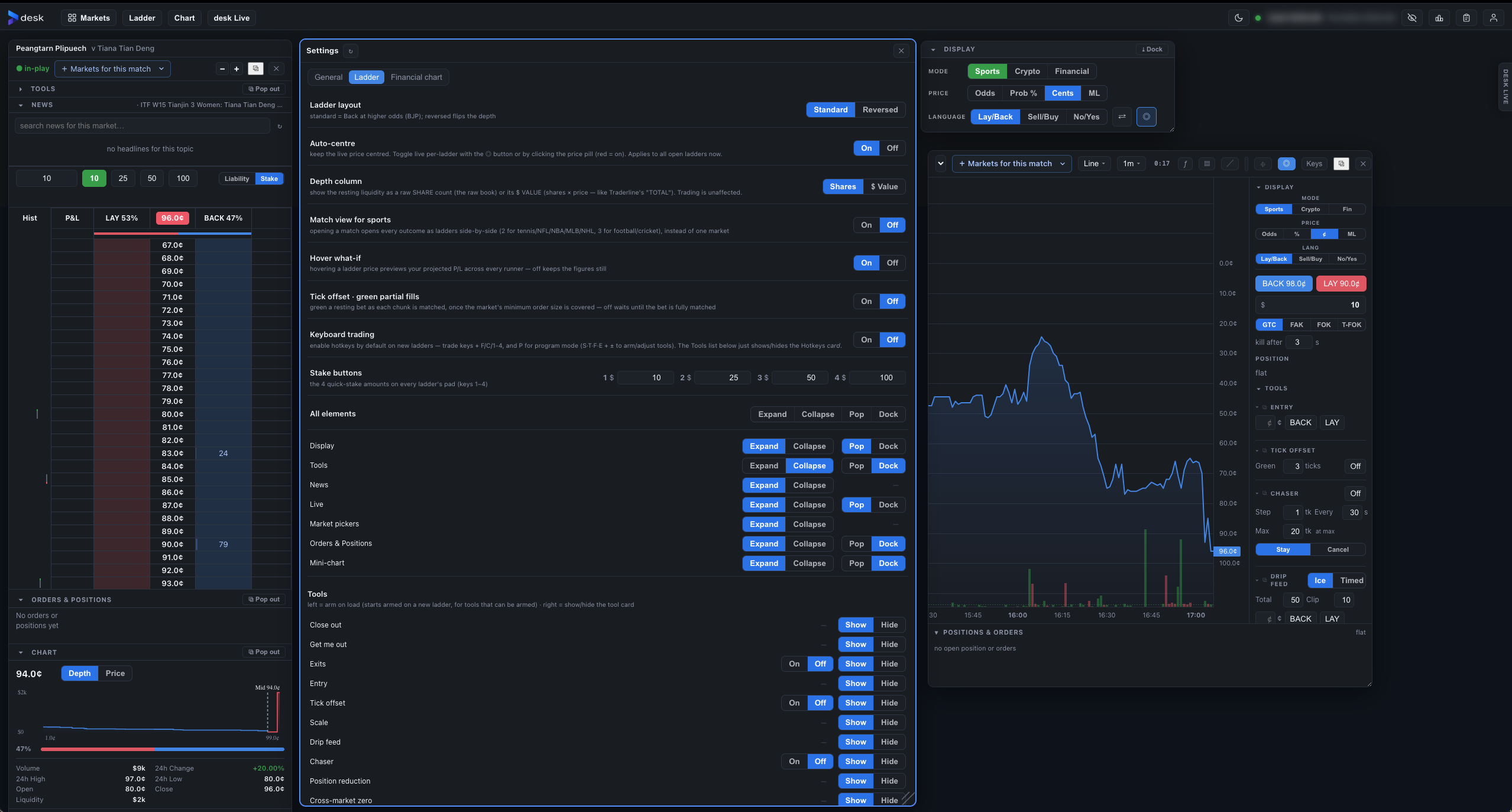
Open Settings from the profile icon (top-right) to set your defaults — these seed every new panel you open:
- Default ladder mode and default chart mode — Sports, Crypto or Financial.
- Default price format — Odds, % (probability), ¢ (share price) or ML (moneyline).
- Default order type — GTC, FAK, FOK or Timed-FOK.
- Theme — light or dark.
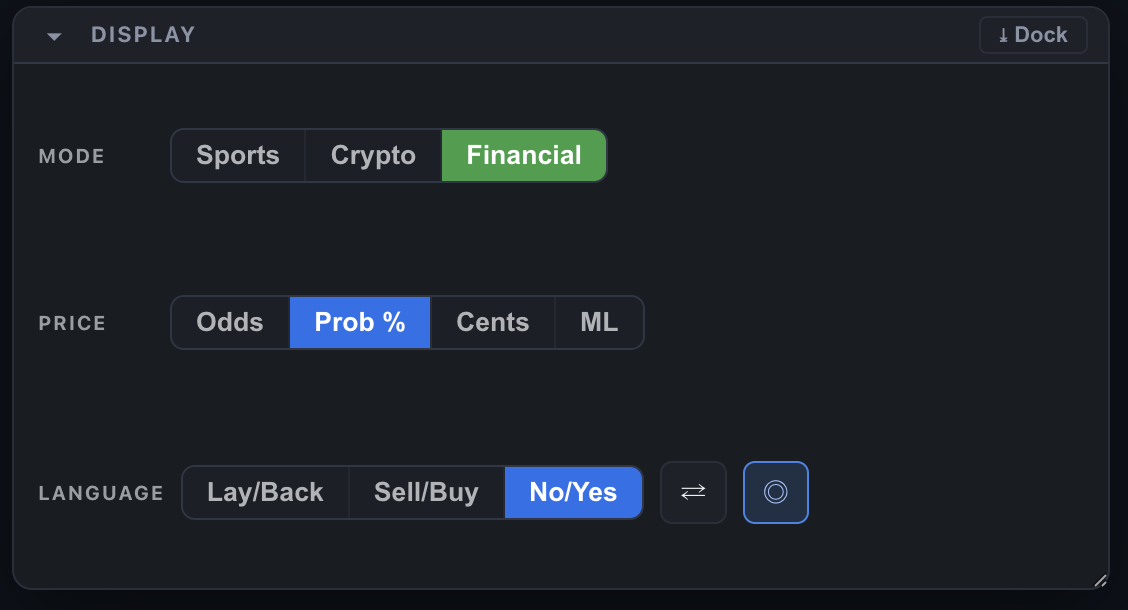
Then fine-tune per panel. Every ladder and every chart has its own Display controls — Mode (Sports / Crypto / Financial), Price (Odds / % / ¢ / ML) and Language (Back-Lay / Buy-Sell / No-Yes). Change one panel without touching the rest: flip a single chart to % while everything else stays in ¢, or read one ladder in Back/Lay and another in Buy/Sell. Each Mode carries sensible presets — Sports → odds + Back/Lay, Crypto & Financial → ¢ + Buy/Sell — which you're free to override.
Pop-outs & layout
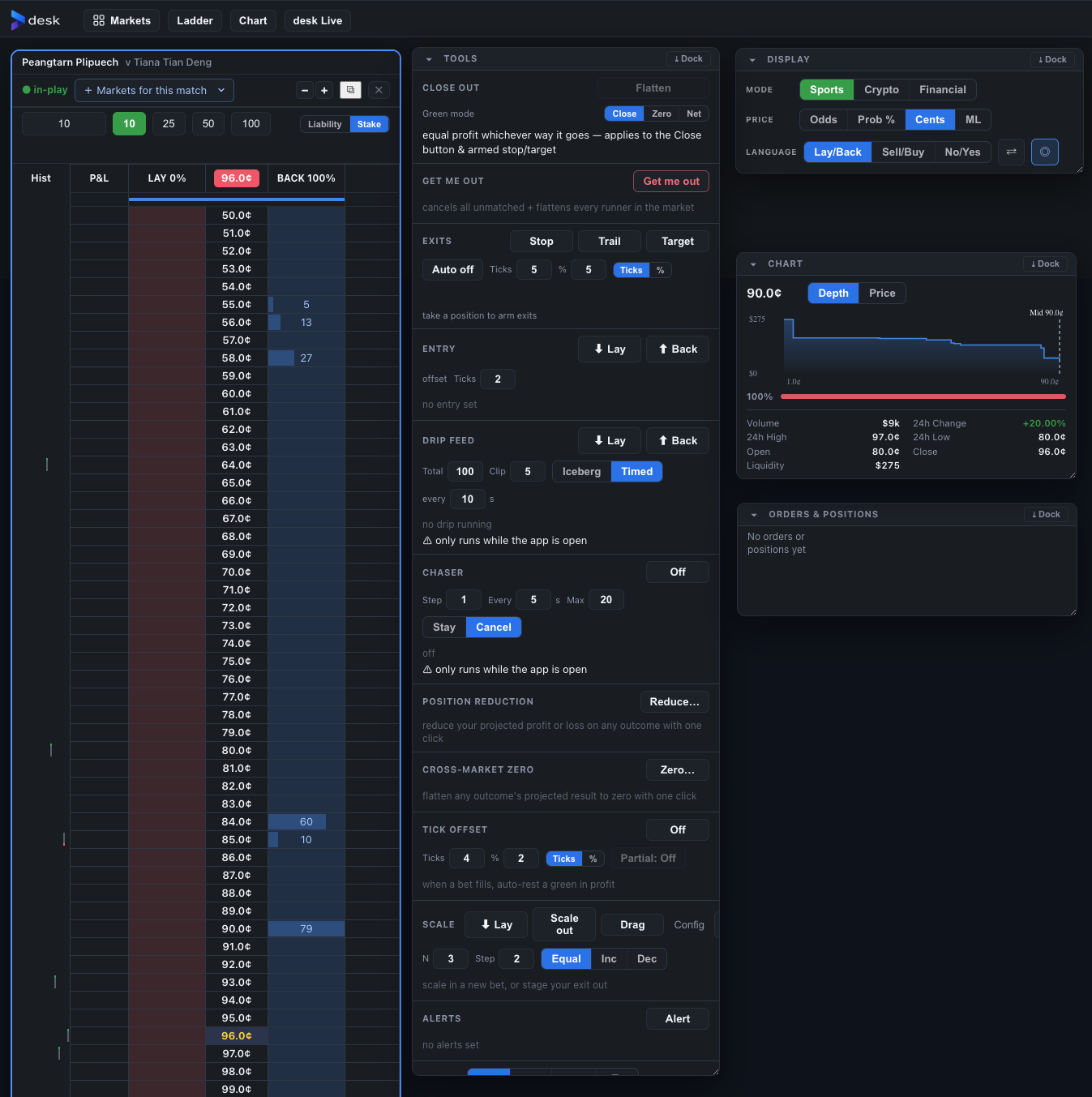
Nothing is fixed in place. The Display controls, the Tools panel, Orders & Positions and the bottom Chart each pop out into a floating, draggable, pinnable panel — hit ⧉ Pop out, drag it where you want it, then ⤓ Dock to snap it back. Collapse whatever you don't need. Your layout is remembered between sessions, so Desk opens the way you left it.
Orders, Positions & History
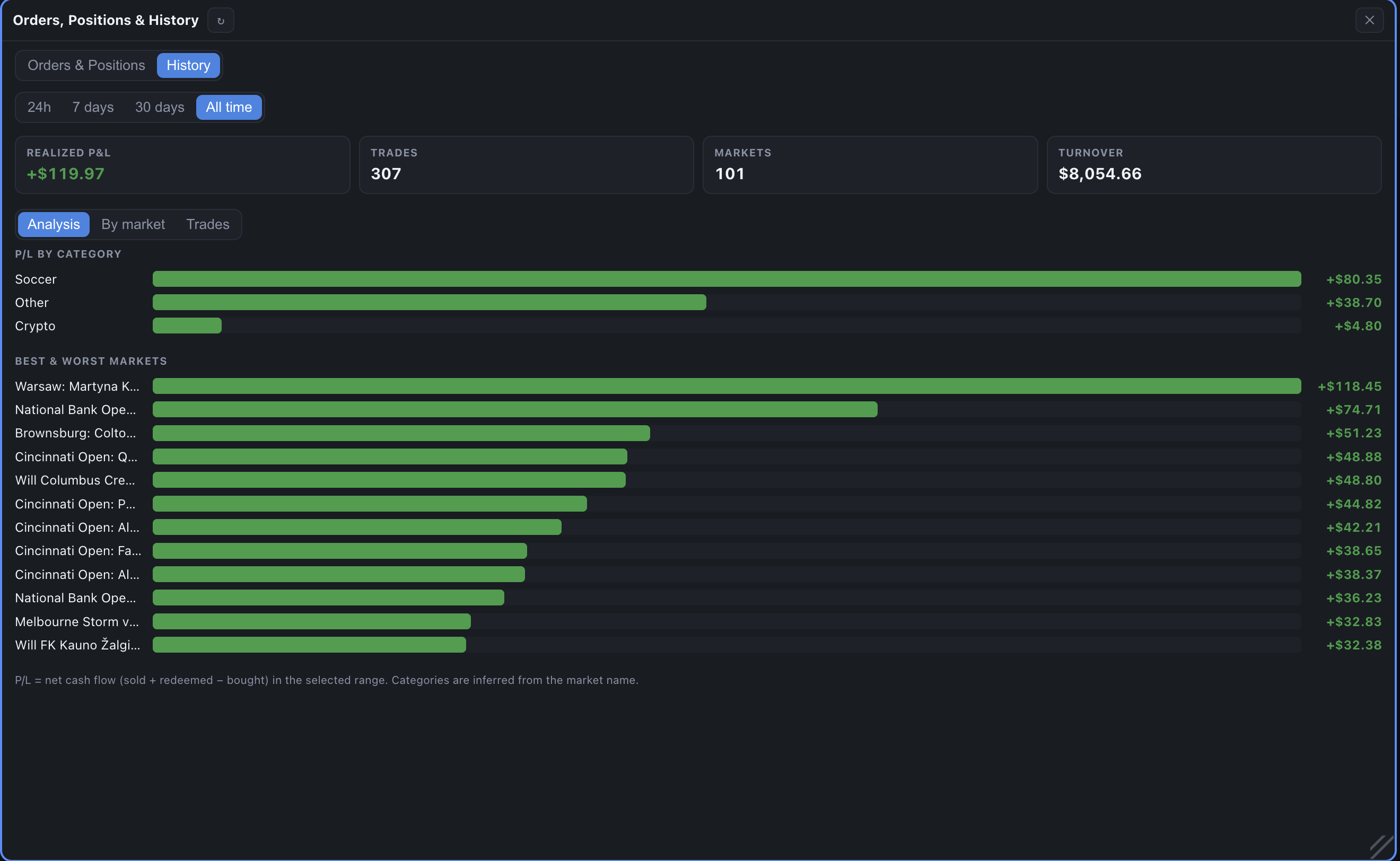
The clipboard icon (top-right) opens Orders, Positions & History — your full account record in one place.
- Orders & Positions — every live open position and resting order, each with running P&L and a one-click cancel.
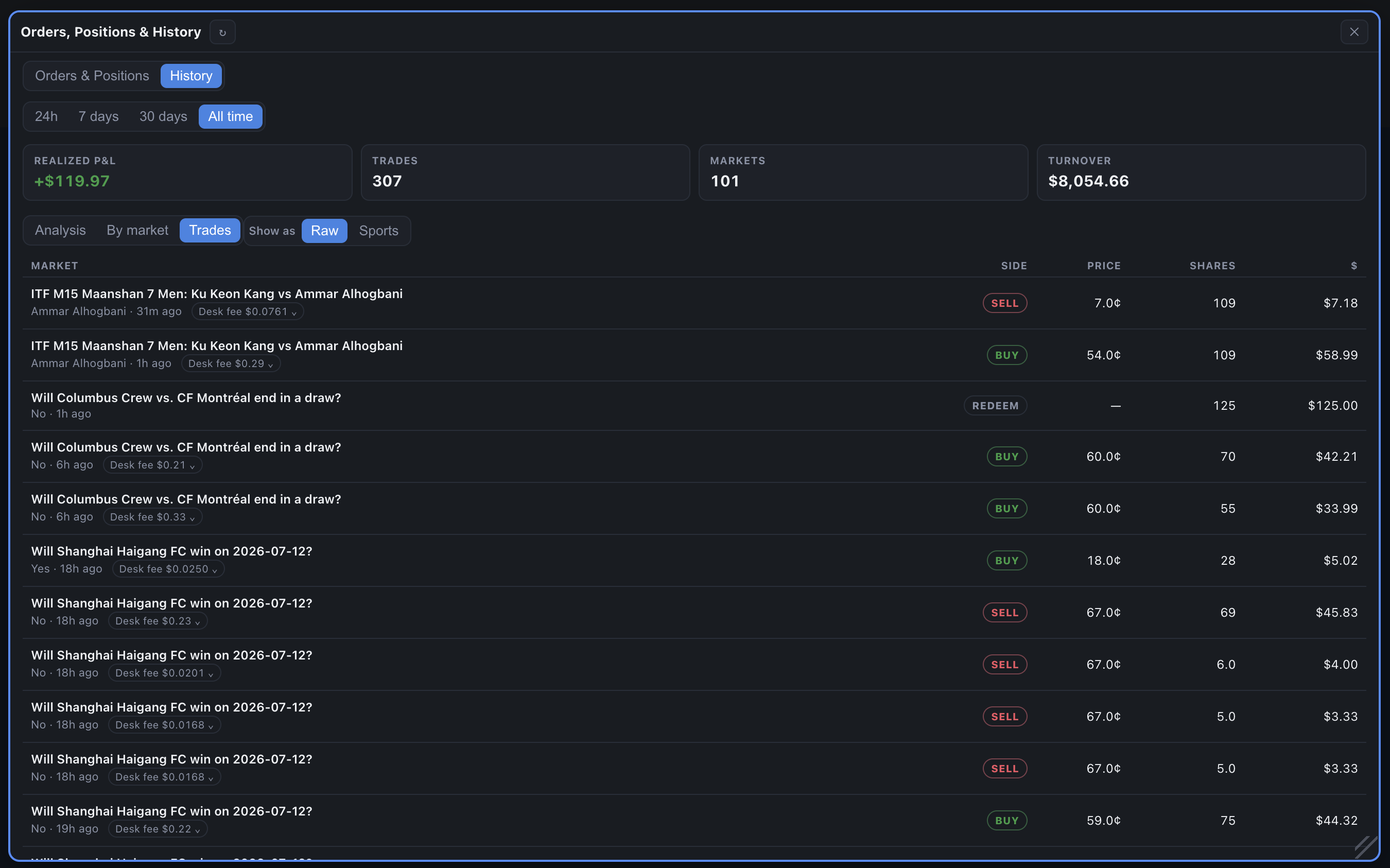
- History — every trade you've made, filtered by 24h · 7 days · 30 days · All time. Headline totals sit on top — Realized P&L, Trades, Markets, Turnover — above three views: Analysis, By market, and Trades (a trade-by-trade log — market, side, price, shares, value).
Switch to Trades for the raw log — every fill with its market, side, price, shares, value and Desk fee:
Ladder trading
The ladder is Desk's heart — a vertical price column with all the live liquidity, built for one-click precision. It's the fastest way to get in, manage and get out.
Reading the ladder
Prices run down the centre. Around them sit the columns that matter:
- Price — every tradeable level, in your chosen language.
- Lay and Back — the resting money on each side, with a depth bar so you can see where the size is.
- P&L — what each price level would mean for your position if it landed there.
- Hist — a mini history spark so you can see where the price has been.

Placing a trade
- Set your stake — type an amount, or tap one of the four quick-stake buttons. You can customise those four amounts in Settings.
- Click a price in the Back column to buy Yes, or the Lay column to buy No.
- Click the touch (best price) to fill now; click a better price to rest an order that waits.
Liability vs Stake
The Liability / Stake toggle decides what your amount means. Liability = the figure you type is your maximum risk. Stake = it's the backer's stake (the Betfair default, where a lay's liability can be larger). If you're new, Liability is the safer mental model — the number you enter is the most you can lose on that click.
Order types
Under the Order type tool you choose how an order behaves:
- GTC — good till cancelled; rests until matched or you pull it.
- FAK — fill what's available now, kill the rest.
- FOK — fill the whole thing now or nothing.
- T-FOK — rest for a few seconds, then cancel whatever hasn't matched.
- Sweep — cross several ticks through the touch so a big order matches across multiple levels at once.
Ladder tools
The Tools panel is where Desk goes beyond a plain order book. Every tool below can be shown, hidden or popped out from Settings, so you only see what you use. Start with the top three — they cover 90% of trading — and add the rest as you grow.
Exits, entries, the chaser and the drip feed are watched by the app — they only fire while Desk is open and connected. If you close Desk, its automations stop. Anything already resting on Polymarket stays live; anything Desk was watching for does not.
Chart trading
The chart is for reading the market — trend, momentum, where price has been — and trading straight off it. It carries its own order ticket, so you never have to switch back to a ladder.
Chart types & timeframes
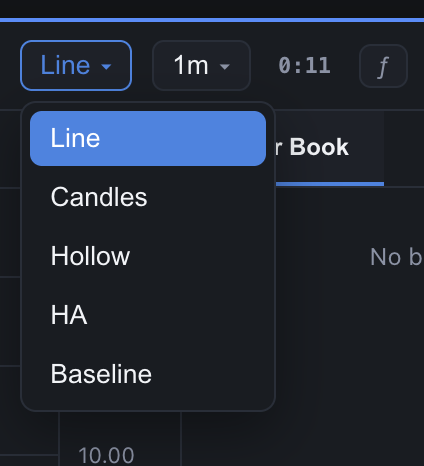
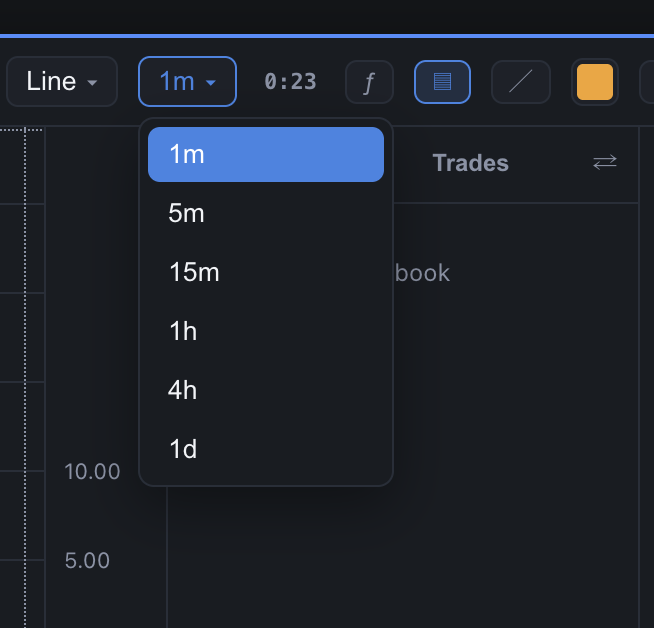
Two compact buttons on the top bar hold the view. The first switches the drawing style — Line, Candles, Hollow, Heikin-Ashi or Baseline; the second sets the timeframe from 1-minute up to 1-day. Each button shows what you're currently in.
Indicators
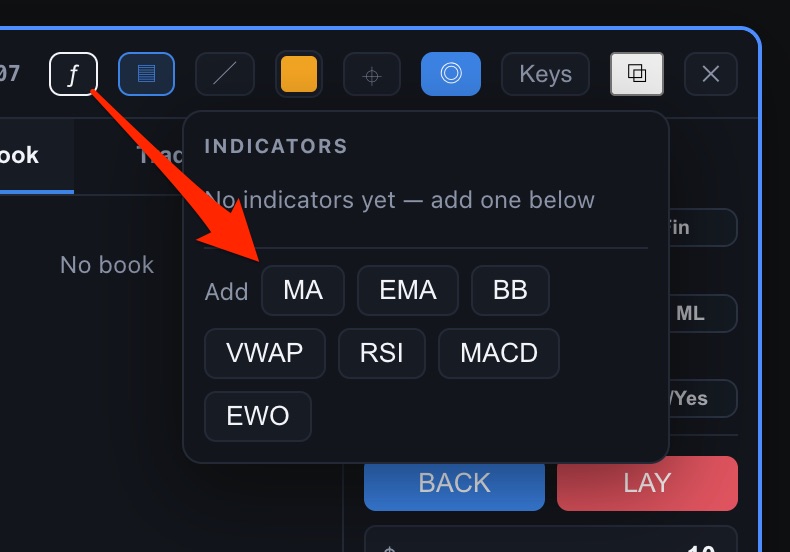
Open the ƒ Indicators panel to layer studies over price: moving averages (MA, EMA), Bollinger Bands, VWAP, and oscillators RSI, MACD and EWO. Each is configurable and colour-coded, and you can set your defaults so every new chart opens ready.
The trade ticket
The chart's Back / Lay buttons show the live best price and trade at your chart stake. Turn on Keys for keyboard trading, with the number keys firing your saved stakes. Open the order book / depth panel alongside to see the full liquidity while you chart.
Reading & framing tools
- Trend lines — click two points to draw; click a line in draw mode to delete it.
- What-if — hover the chart to see the P&L you'd bank by trading out at that price (needs a position).
- Auto-centre — keeps the last price vertically centred as it moves, without touching your zoom.
Chart tools
The chart carries the same automation toolkit as the ladder, so you can manage a position without leaving your view. They behave exactly as their ladder counterparts — set a level by clicking the chart instead of a ladder rung.
- Get me out — flatten and cancel everything on this market.
- Exits — Stop, Target and Trailing stop, drawn on the chart.
- Entry — auto-enter when price reaches a level.
- Tick offset — auto-rest a green in profit after a fill.
- Chaser — chase a resting order toward the touch.
- Drip feed — work size in hidden clips.
- Scale — spread orders across levels.
- Alerts — notify at a price.
A Position & orders panel on the chart tracks your live position, resting orders and this session's fills — including realised P&L after you close.
The two cross-market tools — Position reduction and Cross-market zero — live on the ladder only. They reach across sibling markets, while a chart stays focused on the single market you're reading. Everything else is available on both.
Football stats
For football markets, Desk pulls in live match data so your trading and the game sit side by side. Hit Stats and pick a football market — Desk auto-links the fixture. Can't find it? Use Link to search a team and attach the match manually.
The panel has four tabs:
- Stats — live team stats: possession, shots, cards, corners and more.
- Events — the timeline: goals, cards and substitutions as they happen.
- Lineups — both teams laid out on a pitch, with formations.
- Prediction — the model's read on the match.

desk Live — follow the smart money
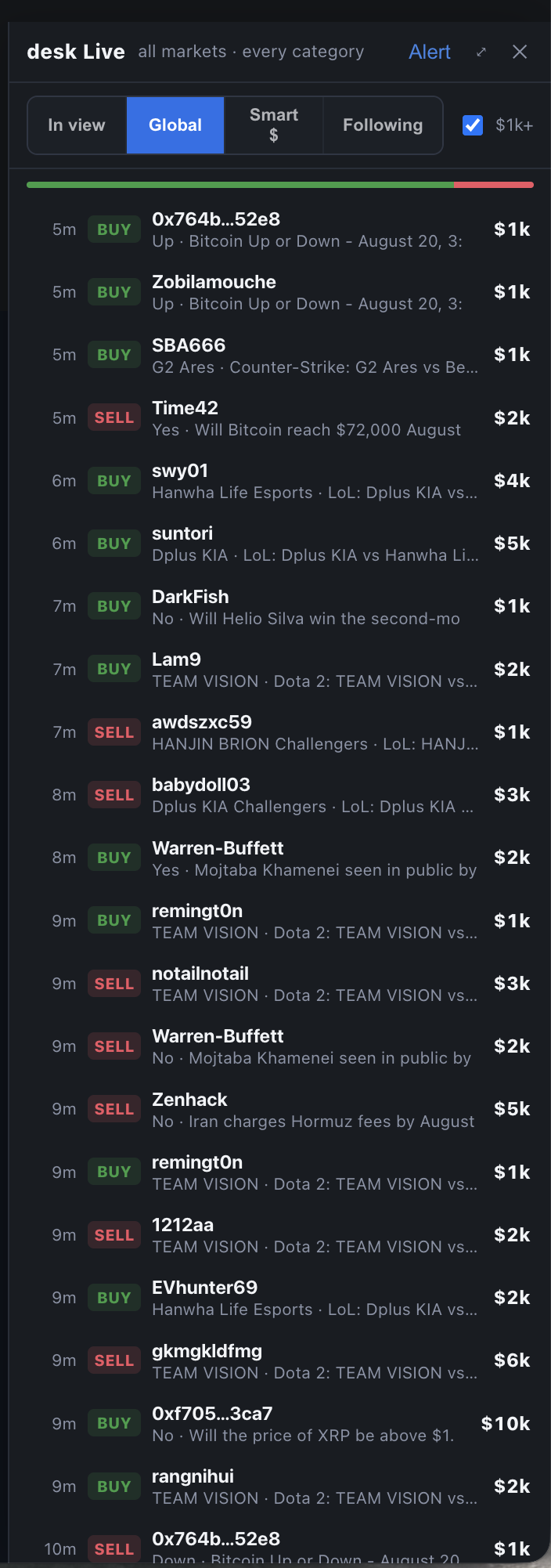
desk Live shows where the big money is moving. A live feed of net whale flow and top holders lets you see conviction building or draining out of a market in real time.
Scope it to what you care about:
- This market — flow on the market you're focused on.
- Global — the biggest moves happening anywhere right now.
- Leaders — the standout traders by activity.
- Following — the wallets you're tracking.
Speak your language
Desk shows the same market in whatever dialect you read fastest. In any ladder's Display section:
- Mode — Sports, Crypto or Financial. A one-tap master that sets sensible defaults for the two below.
- Price — Odds (decimal), Prob %, Cents or ML (moneyline).
- Language — Lay / Back, Sell / Buy or No / Yes.
Two extra toggles fine-tune the ladder: reverse flips the depth view (Back at higher vs lower odds), and auto-centre keeps the live price in the middle of the ladder as it moves.
Good habits
- Keep Desk open while automations run. Exits, entries, chasers and drips are watched by the app — close it and they stop.
- Flatten before a market resolves. The countdown on each ladder tells you how long is left; trade out before it settles if you don't want to ride it to the end.
- Your keys stay yours. Desk is non-custodial and trading-only — it never holds your funds, can't move money out of your wallet, and your key stays in your device's secure storage. Deposits and withdrawals happen on Polymarket.
- Trade from a wallet you fund for trading. As with any self-custody wallet, connect a key that holds your active trading funds rather than your entire balance — so a lost device or key is bounded to what you were trading. Keep the computer you run Desk on clean; a compromised machine can put any wallet's key at risk, not just Desk's.
- Start small. Set your quick-stake buttons low while you learn a tool, then raise them once it's second nature.
- Use Liability mode early. The number you type is the most you can lose on that click — the simplest way to stay in control.
Open a market, drop the stakes low, and try one tool at a time. When something's unclear, hover it in the app — almost every control has a plain-English tooltip. Questions? info@studio41.dev.