 Start
← desktrading.app← Back
Start
← desktrading.app← Back
Start
← desktrading.app← Back
Start
← desktrading.app← Back
Create a Polymarket account, add funds, and connect Desk — thirteen short steps. Most people place their first trade inside ten minutes. Already have a funded account? Switch to I already have an account to skip straight to Connect Desk.
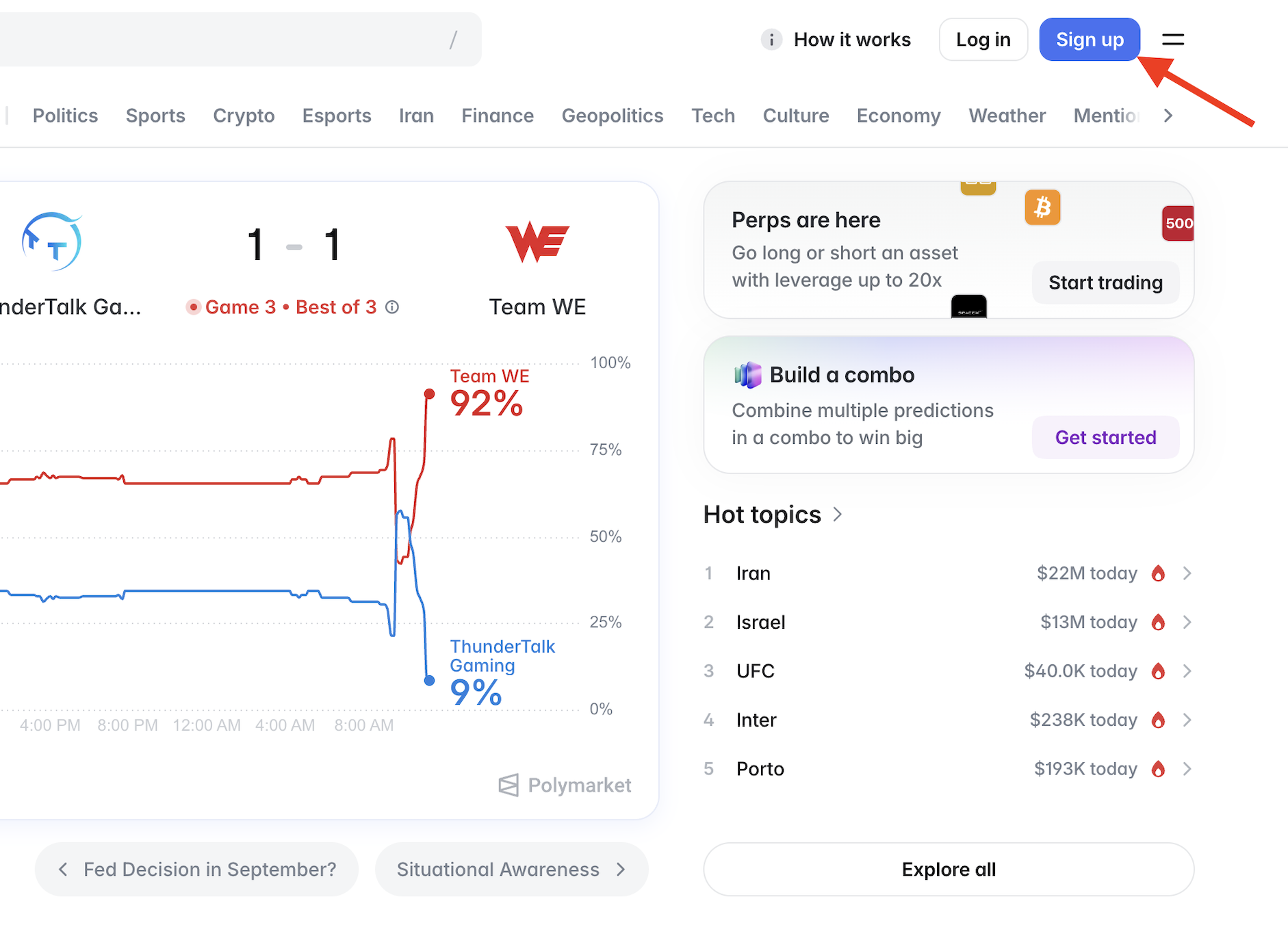
Head to polymarket.com and hit Sign up in the top-right.
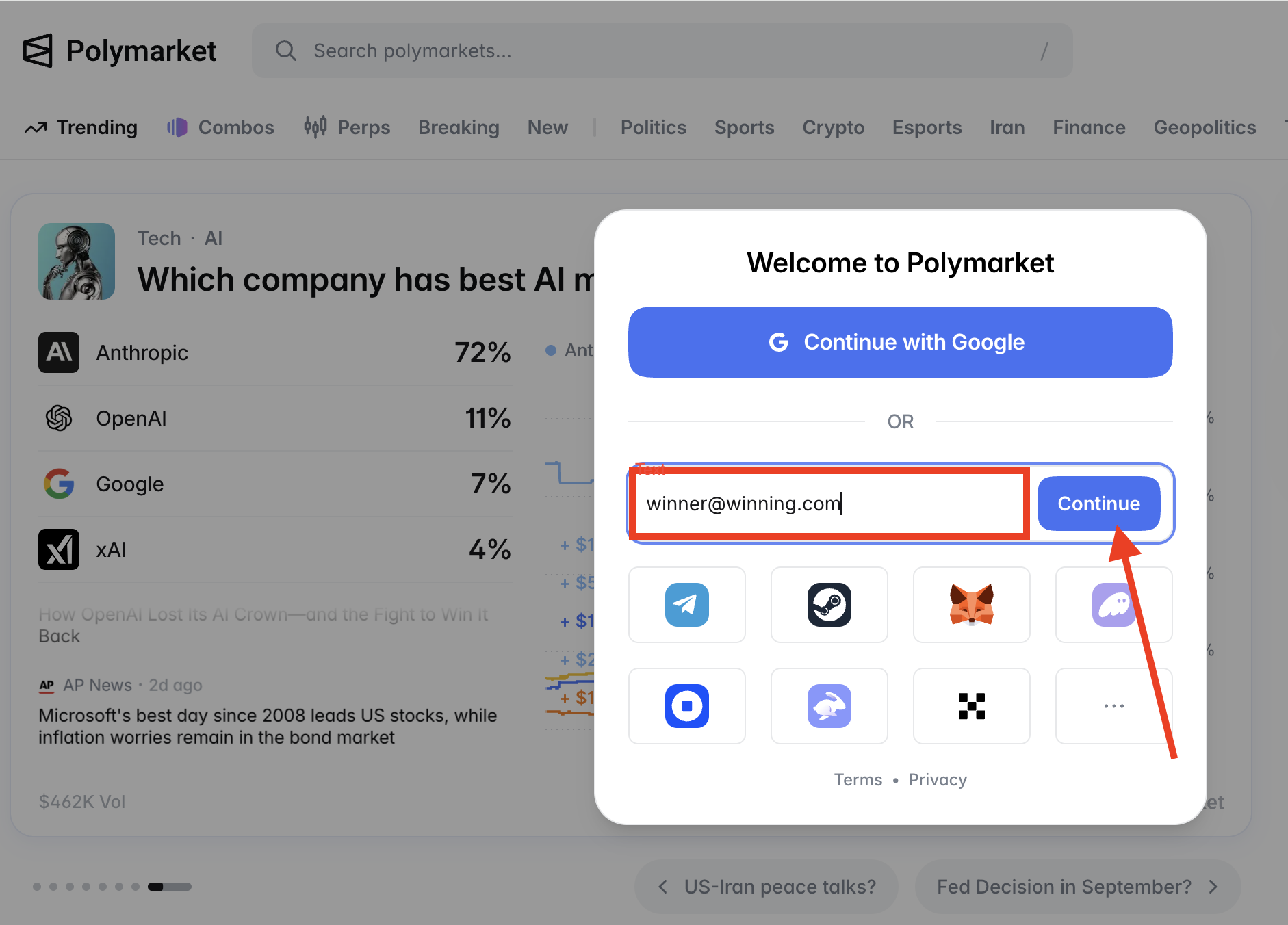
Type your email address, or continue with Google.
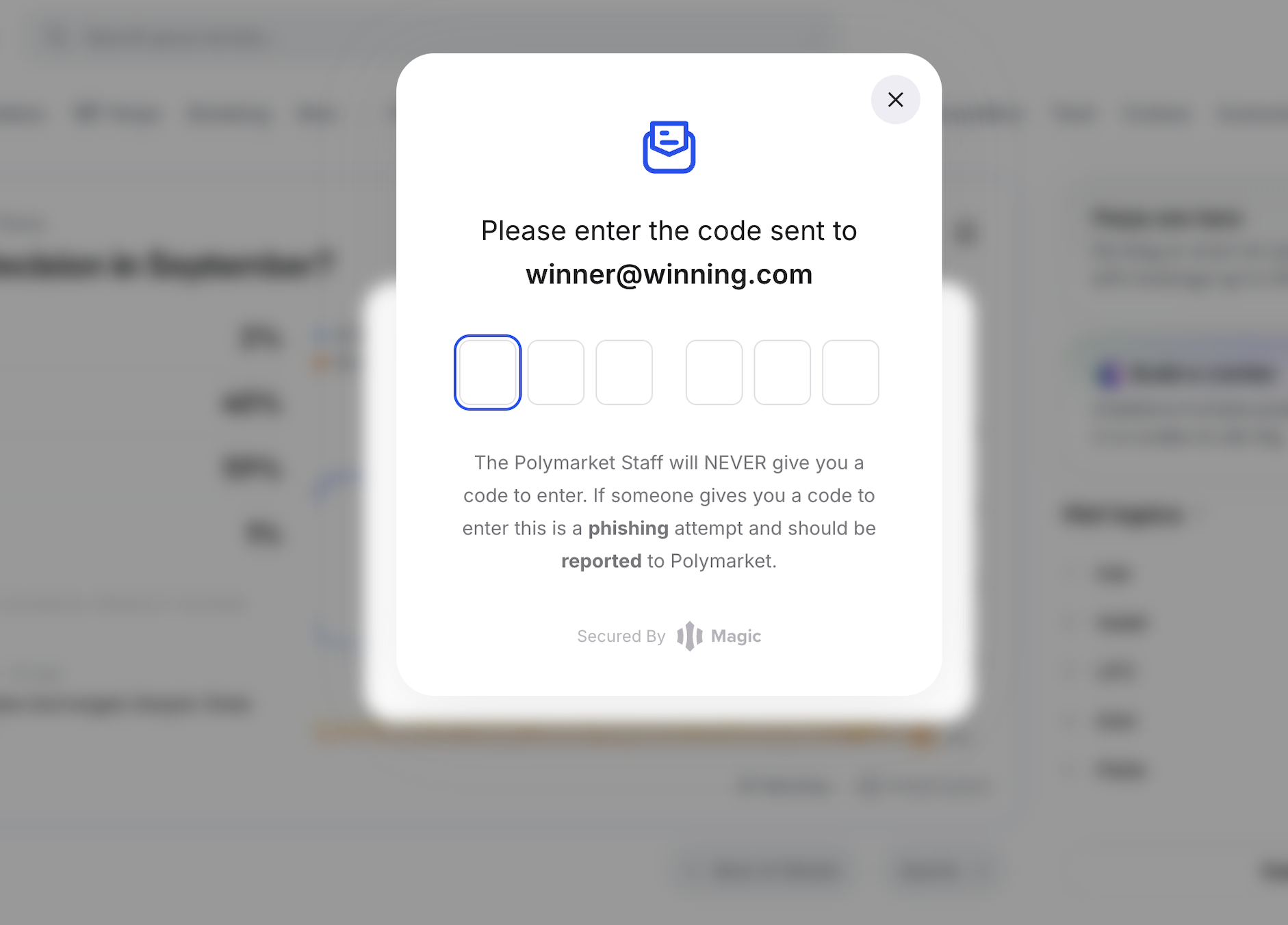
Grab the code from your inbox and enter it. Only ever use a code you just requested — never one someone sends you.
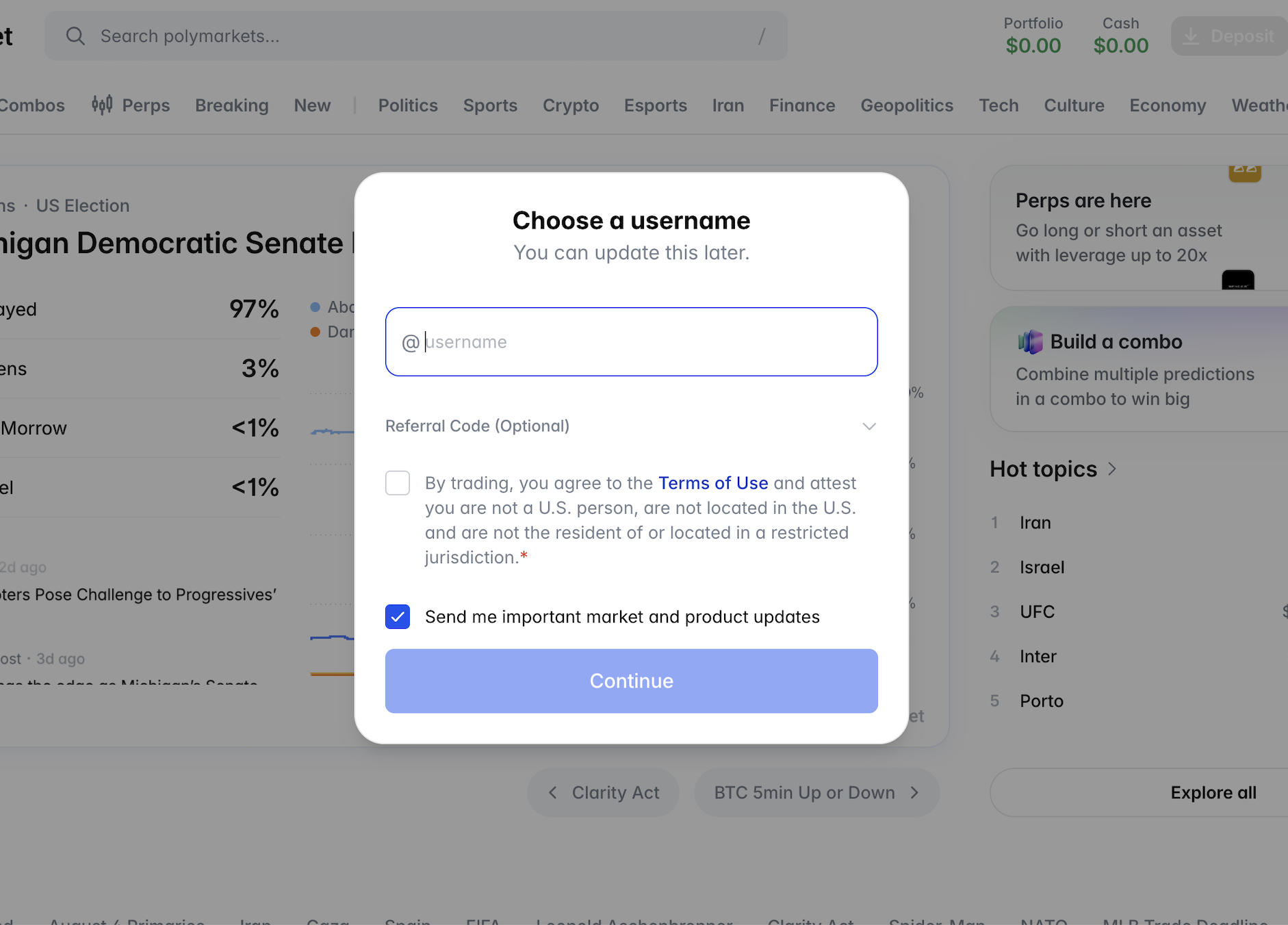
Choose a username and accept Polymarket's terms. Your wallet now exists.
Card, Apple Pay, Google Pay or crypto — whatever suits you best.
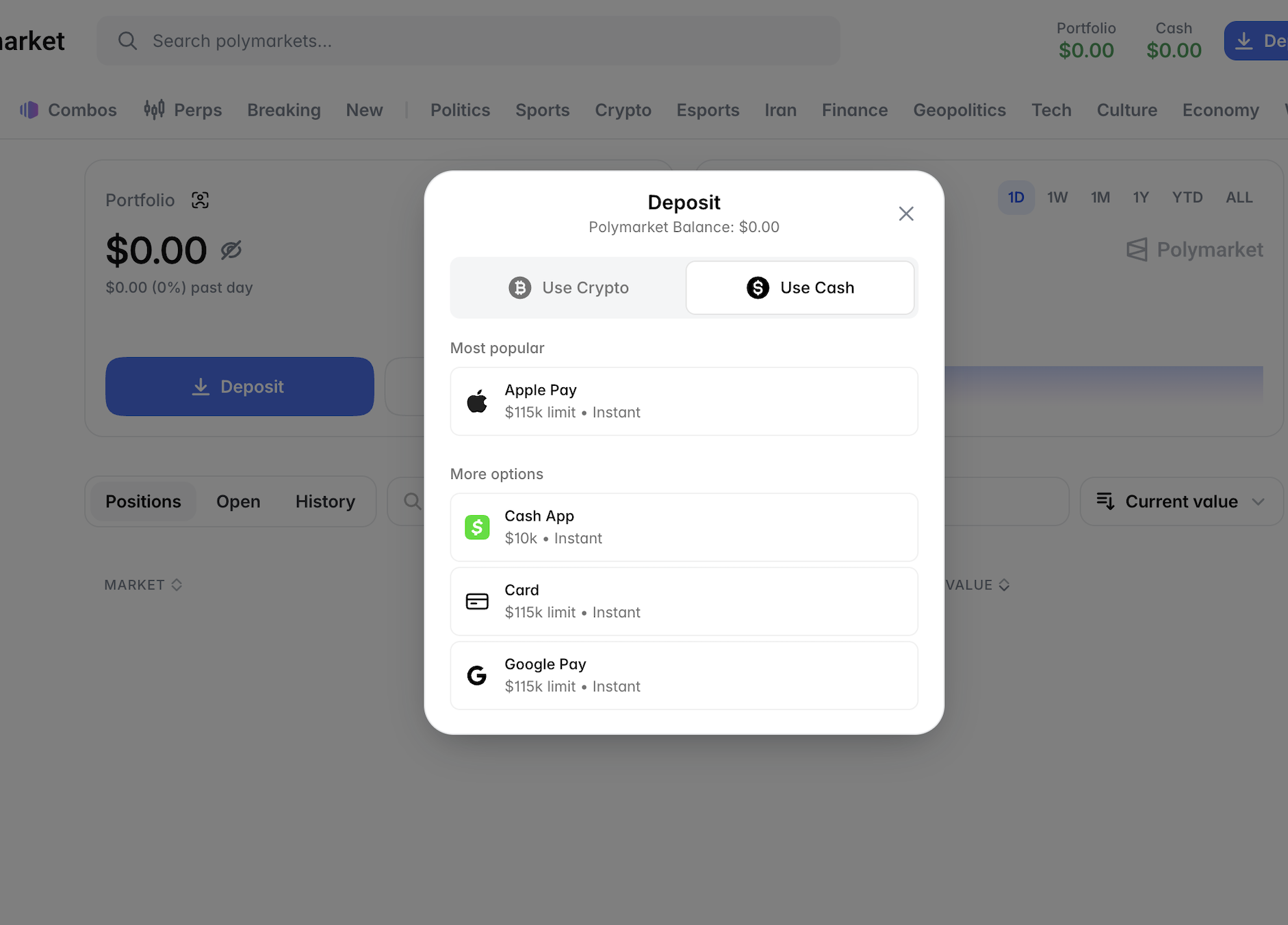
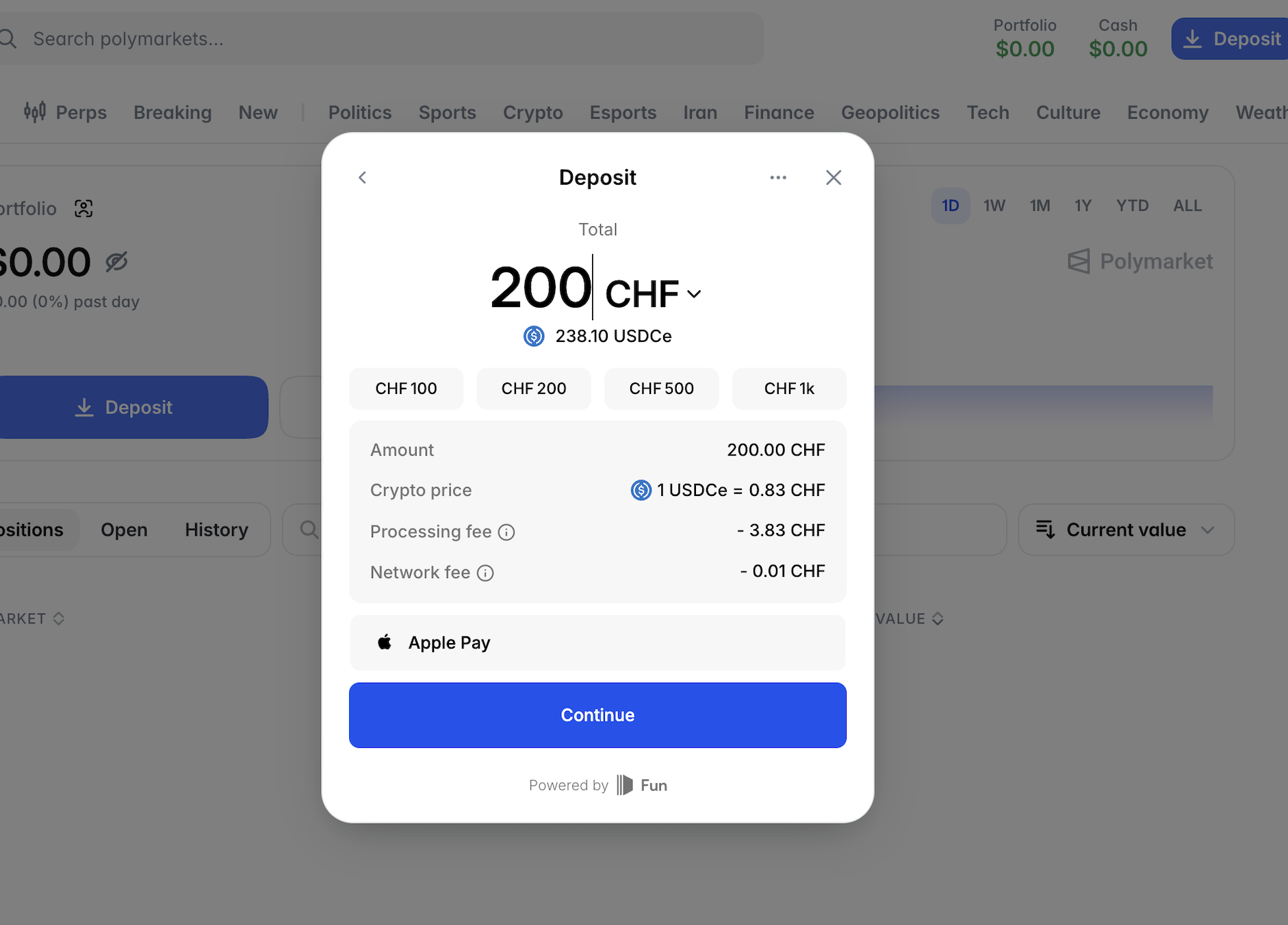
Set your deposit, review the USDC conversion and any fees, and complete the quick verification. Deposits and withdrawals always happen on Polymarket — Desk never touches your funds.
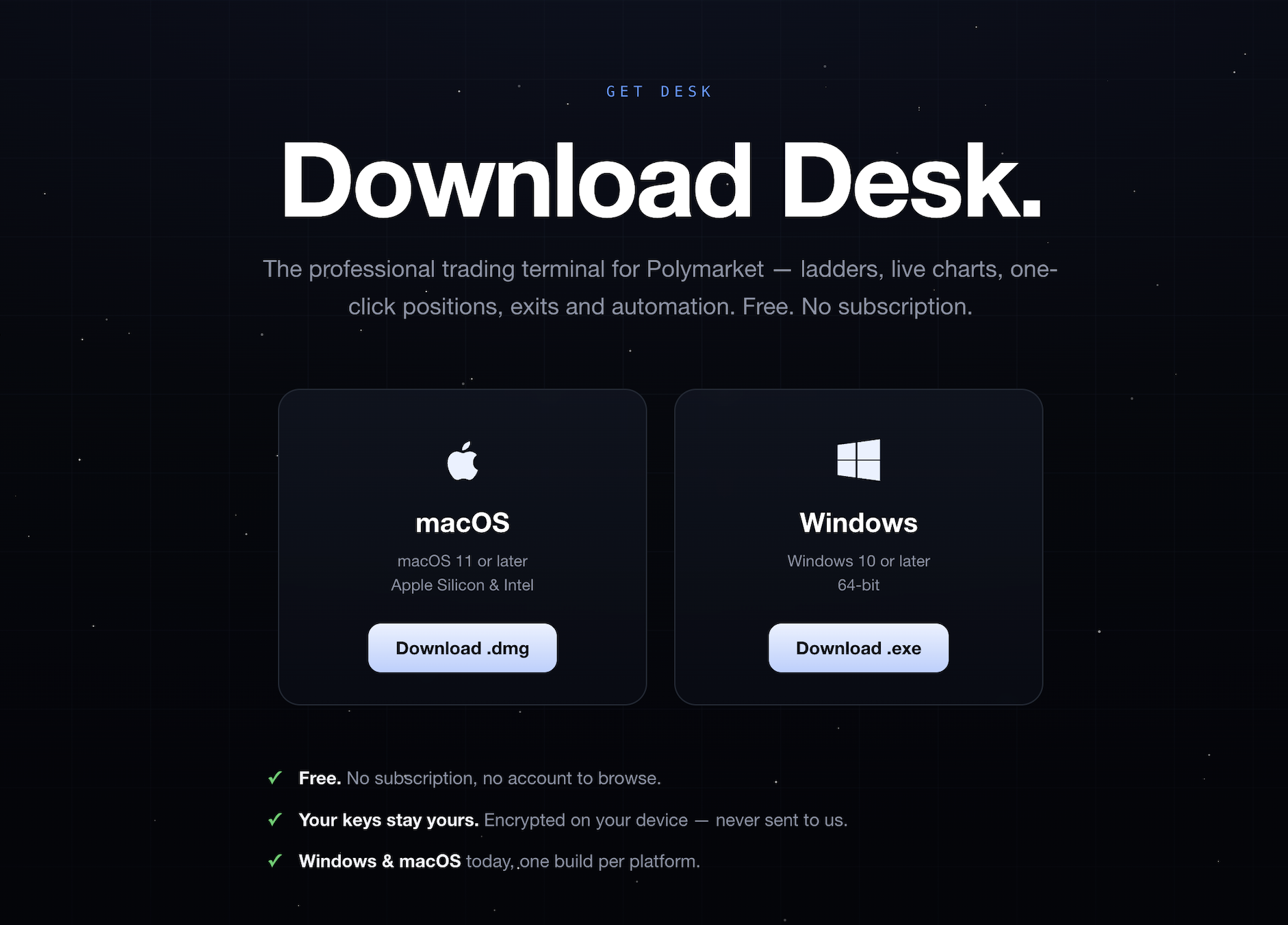
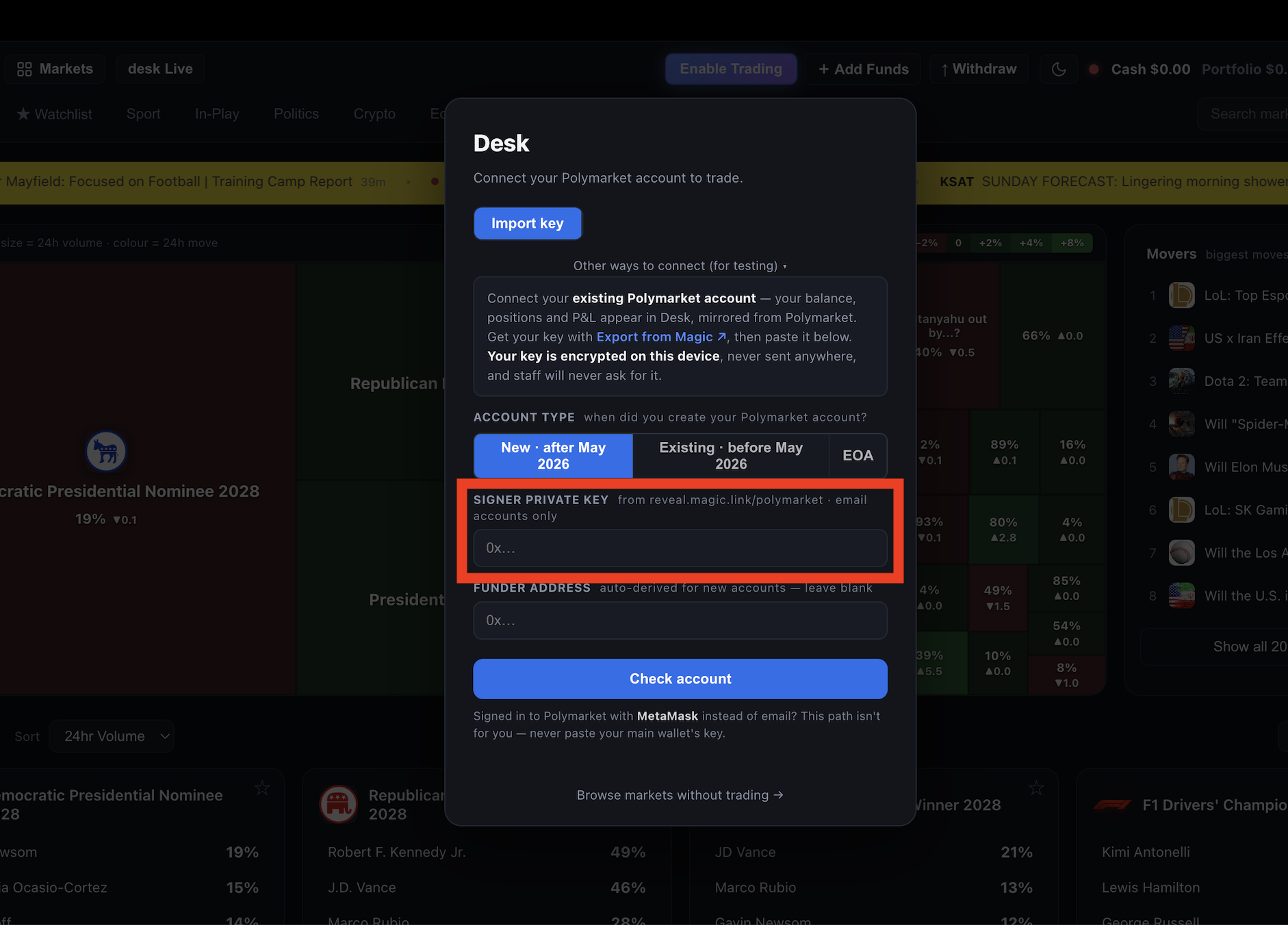
On first launch — or any time you're signed out — Desk opens the connect screen automatically. You can also reopen it from Settings → Wallet → Change.
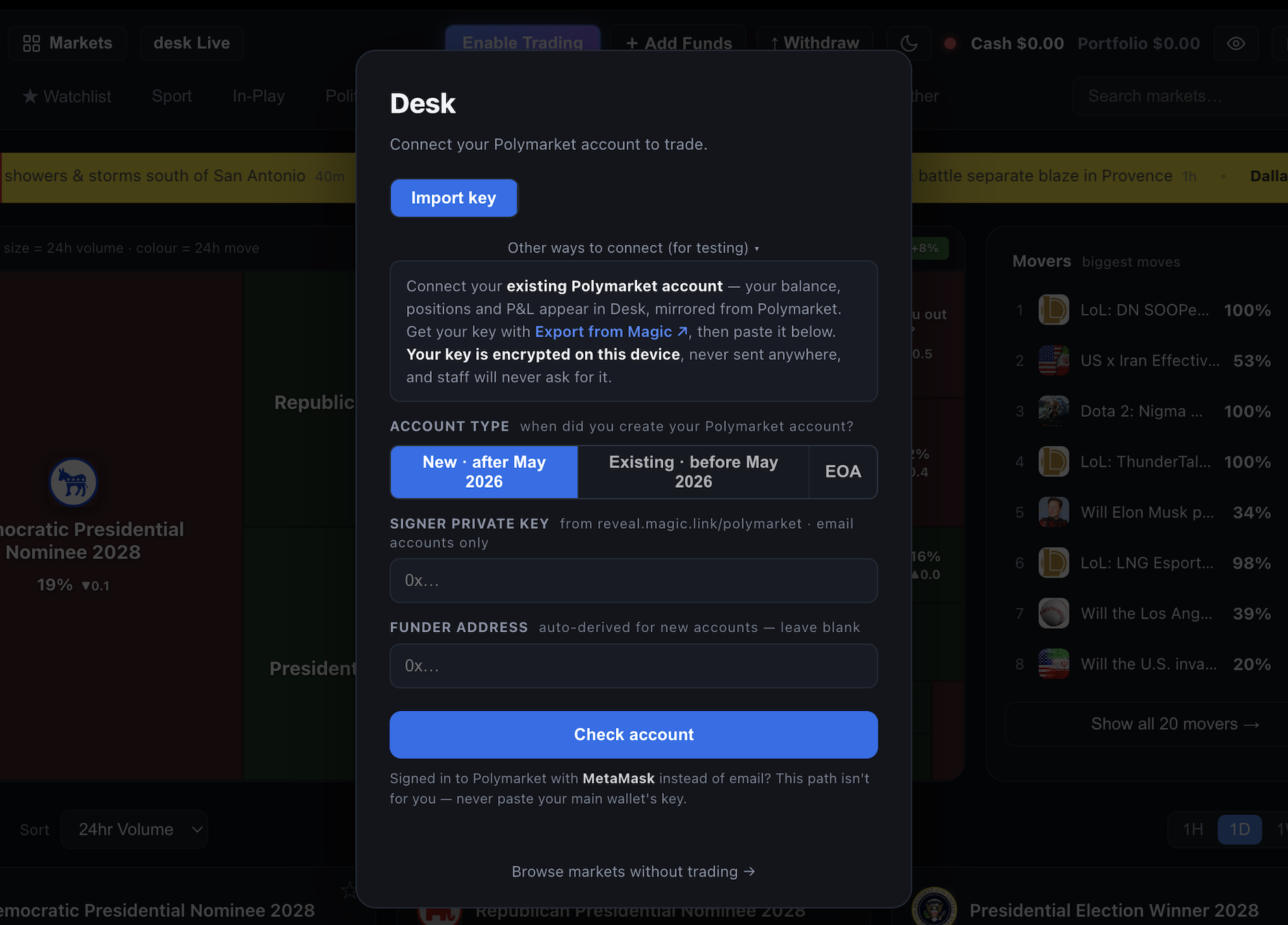
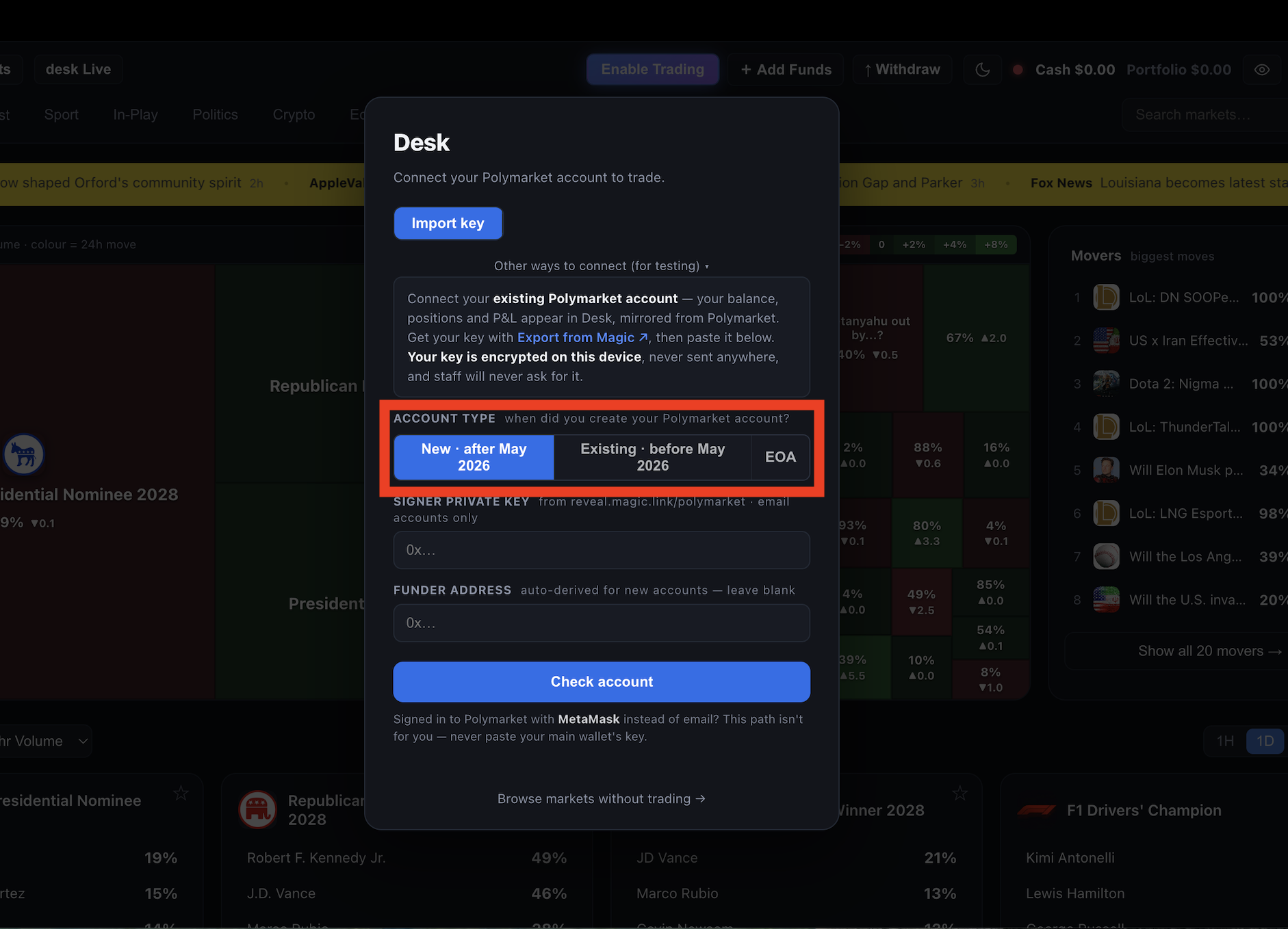
Pick the option that matches when you created your Polymarket account.
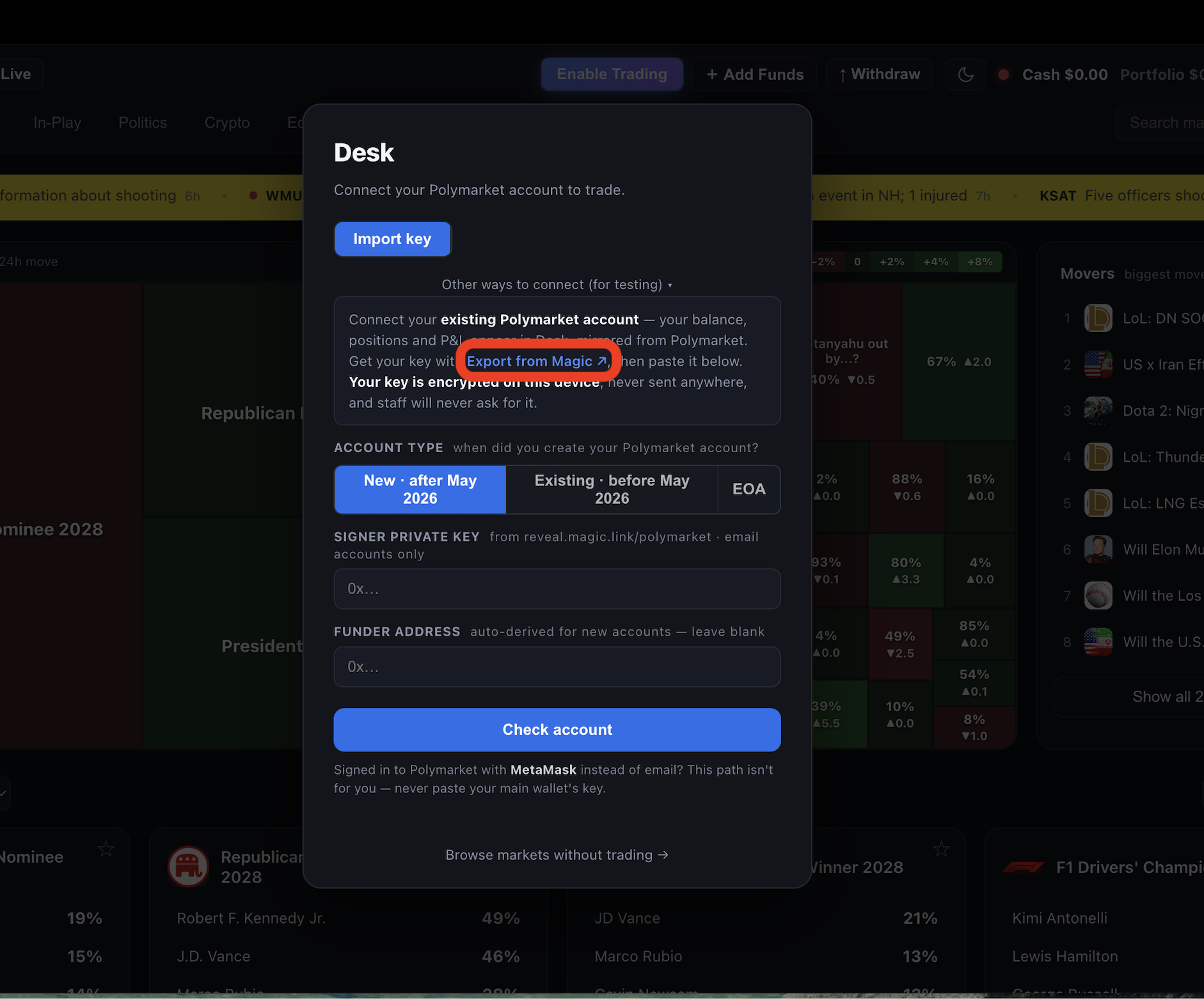
Click Export from Magic to reveal your Polymarket signer key.
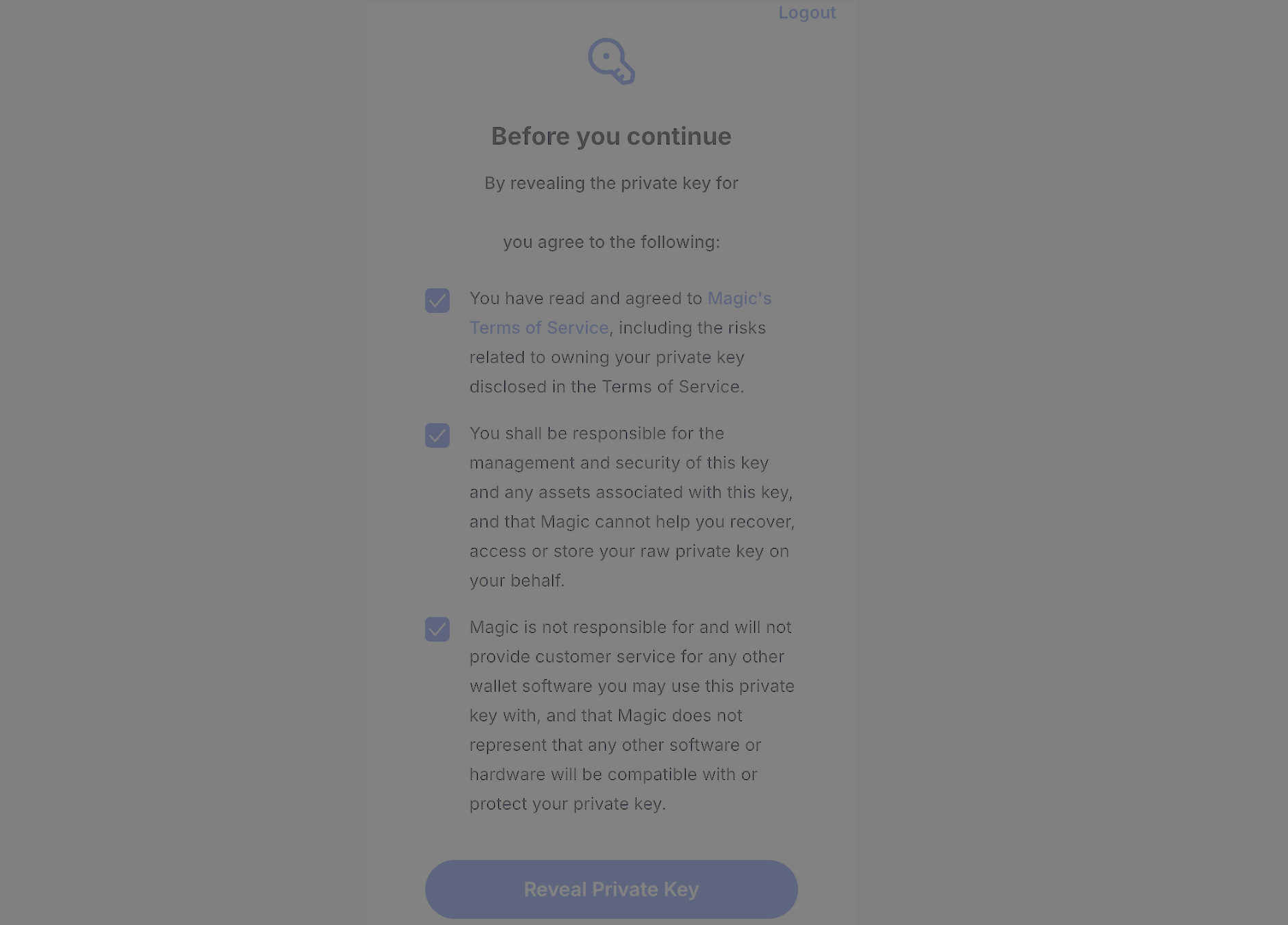
Accept the three Magic checkboxes, then choose Reveal Private Key.
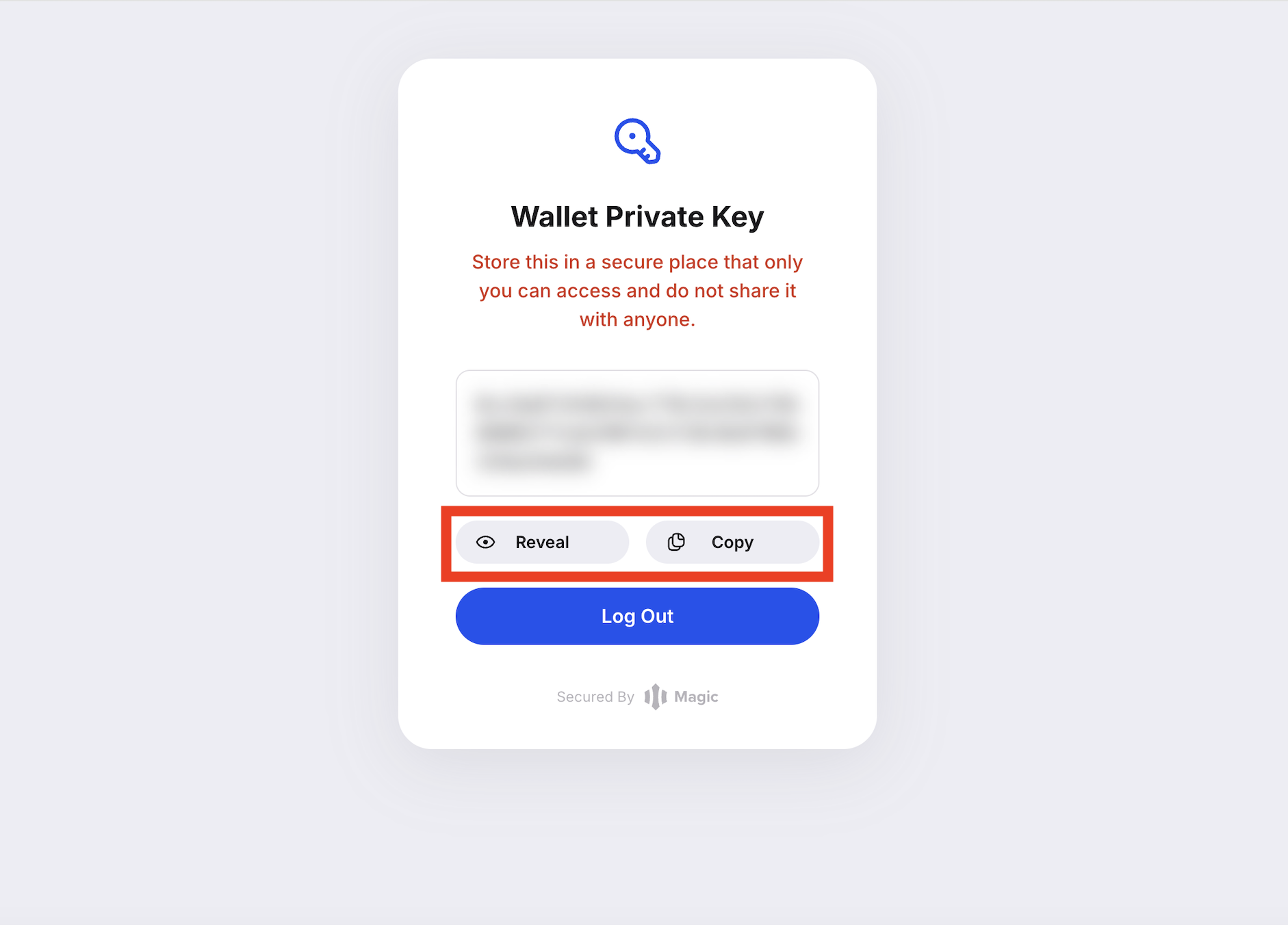
Copy the key. Never screenshot it, and never share it with anyone — not even "support".
Paste the key, wait for the green "connected" preview, tick Remember on this device if you like, then Connect — and that's it, you're in.
Browse markets by type, open a ladder, and place your first trade. New to trading itself? Start with trading basics, then reading the ladder.
Download Desk